The whole app in the truck.
Play Store or browser.
Get it from Google Play on Android, or open it in any phone's browser and install it to the home screen — full screen, its own icon, lock-screen alerts. Techs see their day, tap On my way, clock in by GPS, take the photos, complete the job and raise the invoice; the office sees it all live.
The mobile app is included on every plan — it's the same account, the same data. See pricing.
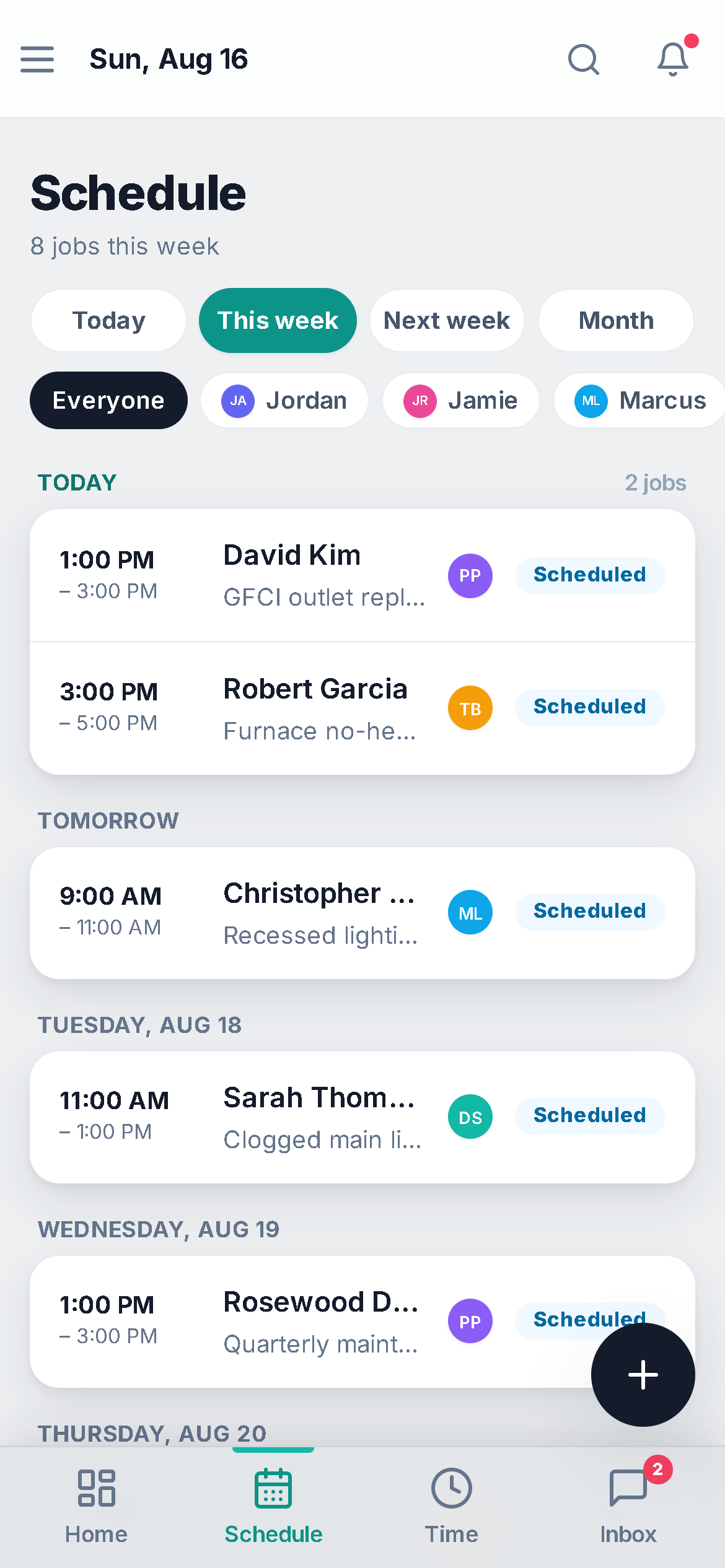
Built for a thumb, not a shrunken desktop
- 01
Google Play, or install it from the browser
On Android, get My WorkQue from Google Play. On any phone — iPhone included — open app.myworkque.com and choose Add to Home Screen: it installs as a standalone app, full screen, its own icon, no browser bar. Either way the content updates on its own, because the app checks the network first every time, so nobody is ever pinned to an old build and your live data is never cached on the device.
In the appGoogle PlayAdd to Home Screenapp.myworkque.com
- 02
The phone screens are their own screens
Jobs, quotes, invoices, clients and requests each have a phone layout — status pills across the top, then rows you tap into — instead of a squeezed desktop table. On a job the two buttons are always the next step in the chain: Complete job, then Create Invoice. The schedule opens on the tech's own agenda, with a month view you can scroll ahead.
In the appComplete jobCreate InvoiceOn my way
- 03
GPS clock-in, photos, and alerts on a locked phone
Clock in and the phone's GPS matches you to the job you're scheduled for; snapshots on the clock put a trail on the timesheet. The Job-site photo prompts ask for before-and-after pictures at the right moments — and with lock-screen alerts switched on for the device, that prompt reaches a phone in a pocket, not just an open app.
In the appClock inJob-site photo promptsLock-screen alerts on this device
- 04
Your customers are on their phones too
Every customer-facing page is a link built for a phone: the quote they approve and sign, the invoice they pay by card, the prep checklist they tick off, the tracking link that counts down the ETA, the sign-off they sign at the door, and the client hub that holds it all — in your colors, no app to install.
In the appApprove & signPay by cardArrived
- 05
One account, phone and desk
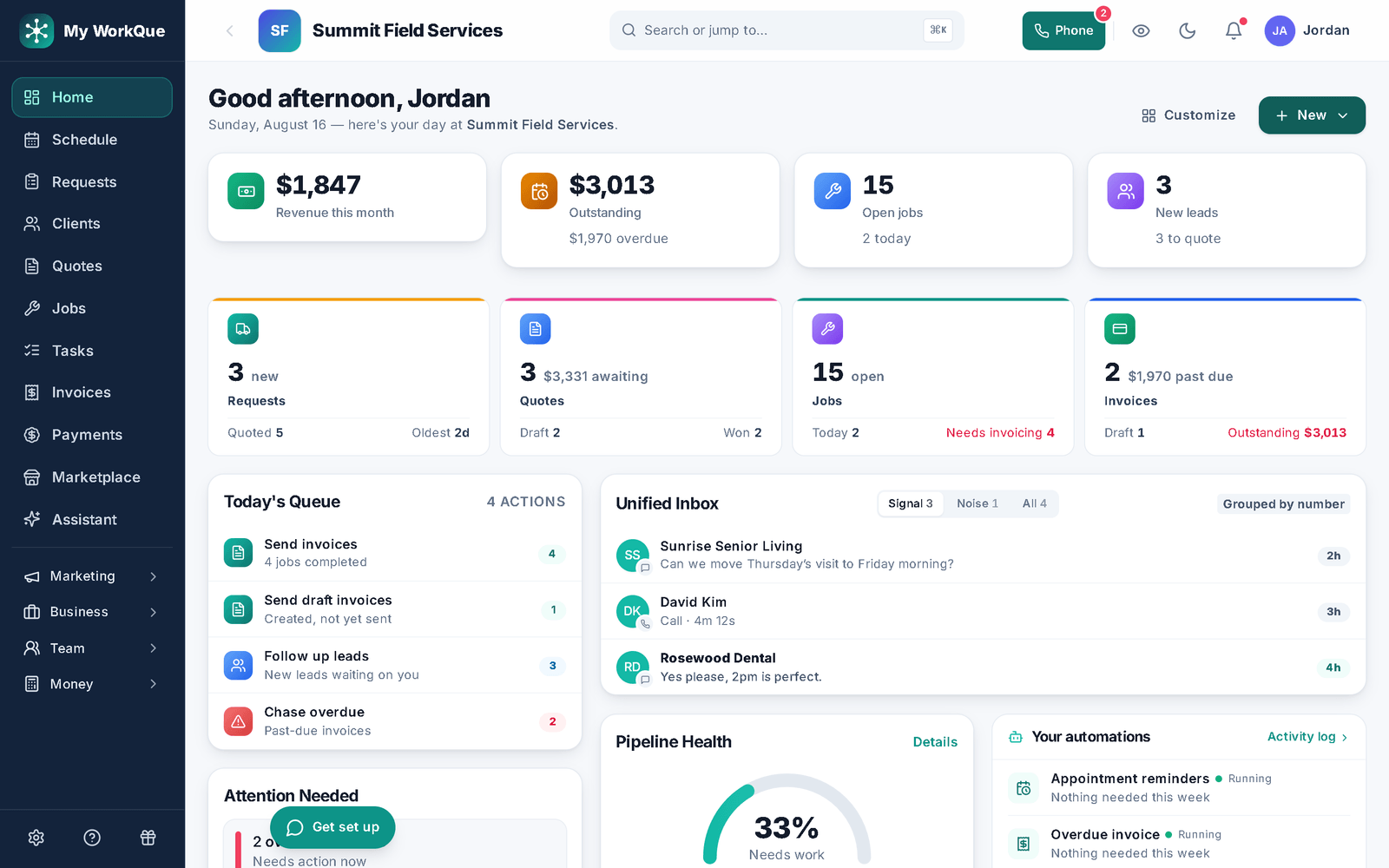
Full power in any browser on the computer, the same account on the phone. Assign a job on the dispatch board and it's on the tech's phone; the tech completes it and the office sees the invoice ready. The Android app on Google Play is the same app again — same login, same records — so it makes no difference which way your crew installs it.
In the appSame account, same data
Fair questions
Is there an iPhone app in the App Store?
No — and we won't say there is. On an iPhone, open app.myworkque.com in Safari and use Add to Home Screen; you get the full app as its own icon. The same works on Android in Chrome.
What about Google Play?
The Android app is in Google Play — search for My WorkQue and install it like any other app. The browser install still works on every Android phone and is the same app with the same account, so either one is fine.
Does it work offline?
The app shell opens without a connection, but your data is live — it is never cached on the device — so jobs, quotes and payments need a signal. Anything you do while connected saves immediately; there is no offline queue.
Do technicians see everything?
No. Roles decide. A technician's schedule opens on their own agenda, and cost fields (what you pay for materials, margins) are hidden from anyone without that permission.
It all runs on the same records
A quote becomes the job, the job becomes the invoice, the payment lands in the books — no re-typing between apps.
Quotes
Templates, optional lines, e-sign and deposits.
See how it works →Scheduling & Dispatch
Calendar views, a drag-to-assign dispatch board, on-my-way texts, GPS time clock.
See how it works →Invoicing
Job to invoice in one click, deposits carried, past-due split out, reminders.
See how it works →Payments
Cards on Stripe through your own account, deposits, plans, every method recorded.
See how it works →Client Hub
Where your customers approve, sign, pay, prep, and refer a friend.
See how it works →Comparisons
Good / better / best in one link the customer compares and chooses from.
See how it works →Automations
Follow-ups and reminders that run themselves — by their real names.
See how it works →
Same app. Truck, desk, kitchen table.
Start your 14-day free trial.